
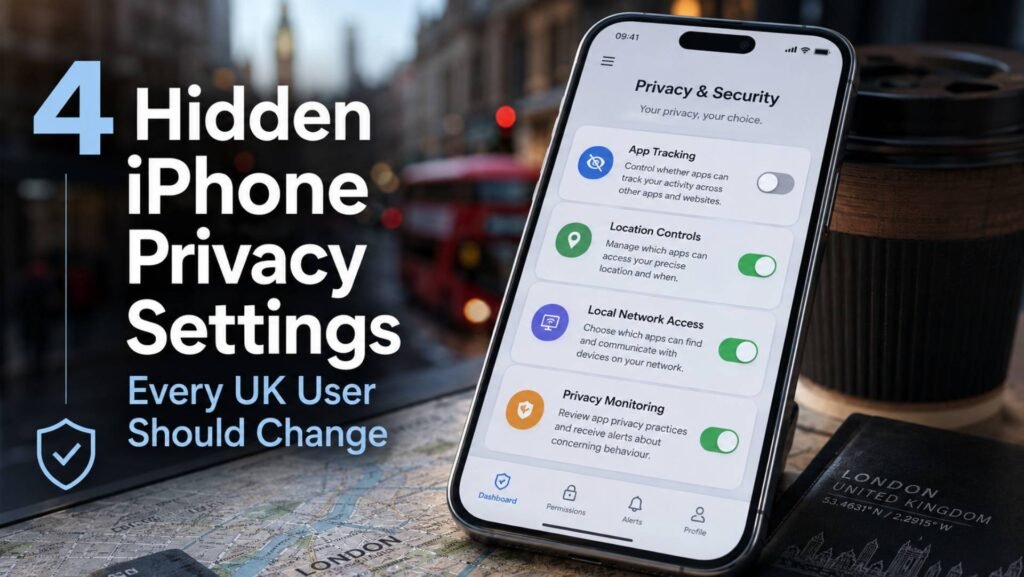
Your iPhone gives you extensive control over what apps can learn about you, but some of the most useful iPhone privacy settings sit several levels deep inside the Settings app. Permissions that seemed reasonable when an app was first installed can remain active months or years later, including access to your location, nearby devices and cross-app tracking.
For UK users, this matters beyond simply avoiding personalised adverts. The Information Commissioner’s Office (ICO) treats technologies used for online tracking—including technologies used in mobile apps—as part of the wider UK privacy and electronic communications framework. Device-level privacy controls do not replace an app provider’s legal obligations, but they give you another practical way to limit information you do not want to share.
This guide focuses on four controls that provide clear privacy value without disabling important iPhone security features. It was researched against Apple’s current documentation and iOS 26.6.1. Menu names can vary slightly on older iPhones or earlier iOS versions.
Quick Answer
If you only have a few minutes, review these four settings:
- Turn off Allow Apps to Request to Track
- Restrict location access and Precise Location app by app
- Remove unnecessary Local Network permissions
- Turn on App Privacy Report
“Change” does not mean switching every permission off. Navigation, delivery, smart-home and media apps may have legitimate reasons to use particular permissions. The safer approach is to give each app only the access it actually needs.
Key Takeaways
- Turning off Allow Apps to Request to Track automatically treats new tracking requests as though you selected “Ask App Not to Track”.
- Location access should be reviewed individually rather than disabling Location Services for the whole iPhone.
- Precise Location can be switched off for apps that only need an approximate area.
- Apps with Local Network permission can detect devices on your network, so access should be limited to apps with a clear reason to have it.
- App Privacy Report shows recent access to sensitive data and sensors, as well as app network activity.
- Some privacy controls involve a trade-off between data minimisation and functionality, so blanket “turn everything off” advice is not appropriate.
The 4 Privacy Settings at a Glance
|
How We Selected These Four Settings
These settings were selected through desk research using current Apple documentation, UK-facing Apple support material, current privacy guidance from the ICO and a review of current iPhone privacy articles appearing in search results.
The selection criteria were:
- direct effect on personal-data exposure;
- relevance to ordinary UK iPhone users;
- availability across a broad range of supported iPhones;
- practical ability for the user to control the setting;
- usefulness that may not be obvious from the main Settings screen;
- meaningful privacy benefits without requiring specialist cybersecurity knowledge.
No hands-on device testing, user survey or proprietary technical testing was conducted for this article. The recommendations are based on documented functionality and editorial analysis.
The four settings are numbered for reading order rather than ranked using artificial scores.
1. Stop Apps Asking to Track You Across Other Companies’ Apps and Websites
Recommended setting: Turn off Allow Apps to Request to Track
Path:
Settings → Privacy & Security → Tracking → Allow Apps to Request to Track
App Tracking Transparency is one of Apple’s better-known privacy systems, but the global control inside it is easy to overlook.
Apple explains that apps must request permission before tracking activity across apps and websites owned by other companies for purposes such as advertising or sharing information with data brokers. If you turn off Allow Apps to Request to Track, apps no longer display those tracking requests. Each request is instead treated as though you selected Ask App Not to Track.
Apple states that when you ask an app not to track, the developer cannot access the system advertising identifier, known as the IDFA, and is not permitted to track you using other identifying information in place of that permission.
Why Change It?
It removes the need to make the same decision each time a newly installed app requests cross-company tracking.
For readers who do not want this form of personalised advertising or cross-app profiling, turning the global switch off is the simpler default.
What It Does Not Do
Do not interpret this setting as a universal “stop all tracking” switch.
It specifically controls tracking covered by Apple’s App Tracking Transparency framework. An app can still process information needed to provide its own service, subject to its policies and applicable law.
This distinction is important because claims that one iPhone switch makes a user completely untrackable are misleading.
Editor’s View
For most privacy-conscious users, this is the easiest of the four changes. The setting is clear, reversible and has little effect on the core operation of most apps.
2. Reduce Which Apps Can See Your Exact Location
Recommended setting: Review each app’s location permission and disable Precise Location where exact positioning is unnecessary.
Path:
Settings → Privacy & Security → Location Services → select an app
Location permissions deserve individual review rather than a single blanket switch.
Apple allows users to choose how an app can access location information. Depending on the app and iOS version, options can include access such as Never, Allow Once, While Using the App and background access. Apple also lets you disable Precise Location so an app receives an approximate position rather than your exact location.
Start With Apps That Do Not Need Constant Location
Look carefully at:
- shopping apps;
- social apps;
- games;
- restaurant apps;
- news apps;
- loyalty apps;
- utilities that have no obvious location-dependent function.
A navigation app may need accurate location while you are using it. A weather app may work perfectly well with an approximate area.
That is why the aim should be minimum necessary permission, not disabling Location Services completely.
Apple warns that turning Location Services off globally can prevent important iPhone and app features from working properly.
Check Precise Location Separately
Opening an app within Location Services reveals an easily missed Precise Location switch.
Apple states that approximate location can be sufficient for apps that do not require your specific position.
Consider leaving precise access enabled for services such as:
- turn-by-turn navigation;
- ride-hailing;
- emergency-related functions;
- location-dependent delivery services when needed.
Consider switching it off where knowing your general area is enough.
Editor’s View
This is the setting that requires the most judgement. Do not follow lists telling you to disable location for every app. Instead, ask one question for each application:
Does this app need to know exactly where I am when I am not actively using a location-based feature?
If the answer is no, reduce its access.
3. Remove Apps That Do Not Need Access to Your Local Network
Recommended setting: Turn Local Network permission off for apps that have no clear reason to discover nearby devices.
Path:
Settings → Privacy & Security → Local Network
Local Network is one of the less obvious iPhone privacy controls.
Since iOS 14, apps that want to browse for devices on your local network must ask permission. Apple says apps with this access can gather information about nearby devices and potentially use that information to determine which networks you join and when.
Open the Local Network menu and you may find apps you approved months ago without remembering why.
Which Apps May Legitimately Need It?
Local Network permission can make sense for apps controlling or communicating with:
- smart TVs;
- speakers;
- streaming devices;
- printers;
- smart-home equipment;
- network storage;
- certain games;
- other devices on the same Wi-Fi network.
A streaming application, for example, may need to find a television.
Which Apps Should You Question?
If an app has no obvious feature involving other devices on your Wi-Fi network, ask why it needs this permission.
Apple explicitly advises users to deny Local Network access when they do not want to allow it or when the reason for the request is unclear. Access can be granted again later if a feature stops working.
Will Turning It Off Stop Internet Access?
Not necessarily.
Apple states that an app denied direct Local Network permission can still use the internet, and certain system services such as AirPlay, AirPrint, AirDrop or HomeKit can interact with the network through system mechanisms.
That makes this permission worth reviewing rather than leaving every historical approval switched on.
Editor’s View
Local Network deserves inclusion precisely because many privacy checklists focus only on advertising and GPS permissions.
It is particularly relevant in homes containing numerous connected televisions, speakers, cameras, printers and smart-home devices.
4. Turn On App Privacy Report and See What Your Apps Are Actually Doing
Recommended setting: Enable App Privacy Report
Path:
Settings → Privacy & Security → App Privacy Report → Turn on App Privacy Report
The previous three controls decide what apps are allowed to access.
App Privacy Report helps you check how granted permissions are actually being used.
Apple says the report provides information about how often apps access privacy-sensitive data and sensors, including location, photos, camera, microphone and contacts. It can also show app network activity and domains contacted by apps and websites.
Why This Setting Is Easy to Miss
App Privacy Report does not provide useful historical information until it has been enabled.
Apple says it begins gathering information only after you switch it on. The report then builds as you continue using your apps.
What Should You Look For?
Do not panic simply because an app appears frequently.
Instead, look for activity that seems inconsistent with what the app does.
Examples might include:
- repeated location access by an app with no obvious location feature;
- microphone access when you did not expect audio functionality;
- frequent access to contacts by an unrelated application;
- unexpected network domains;
- apps using sensitive permissions far more often than expected.
The presence of network activity by itself does not prove wrongdoing. Apps routinely contact servers for legitimate reasons such as content delivery, analytics, authentication and updates.
Treat App Privacy Report as an audit tool, not an automatic threat detector.
How Much Information Does It Keep?
Apple says Data & Sensor Access in App Privacy Report covers activity from the previous seven days. The report data is encrypted and stored only on the device.
What Should You Do If Something Looks Wrong?
Start by checking the app’s permissions under:
Settings → Privacy & Security
You can review categories including:
- Camera
- Microphone
- Photos
- Contacts
- Bluetooth
- Location Services
- Local Network
Apple confirms that users can withdraw permissions after previously granting them.
If an app still appears questionable, review its privacy information and privacy policy before deciding whether to retain it.
Editor’s View
App Privacy Report is arguably the most useful ongoing privacy check because it gives you evidence about permission use instead of asking you to guess which applications are active.
UK-Specific Extra: Check “Limit Precise Location” If Your iPhone Supports It
This setting is not included in the four main recommendations because it is not available on every iPhone.
Apple introduced a separate Limit Precise Location control affecting information available to mobile networks. It is different from the Precise Location permission granted to individual apps.
Apple says the feature can reduce the precision of location information available to mobile networks so that, for example, they may determine a neighbourhood rather than a more precise location. It does not reduce location accuracy shared with emergency responders during emergency calls.
As of Apple’s May 2026 documentation, compatible devices include certain newer models such as iPhone Air, iPhone 16e and iPhone 17e. Apple lists EE, BT and Sky among UK providers for which the feature is enabled by default and says users with a UK or EU SIM may be able to enable the control where supported.
Path on compatible devices:
Settings → Mobile Service → Mobile Data Options → Limit Precise Location
Do not worry if the option does not appear on your iPhone; hardware and network compatibility apply.
A Five-Minute iPhone Privacy Audit
Privacy settings become less useful if they are changed once and then forgotten.
A simple periodic review can be more effective than trying to disable every iPhone feature.
Step 1: Review Tracking
Open:
Settings → Privacy & Security → Tracking
Check whether any app still has permission you no longer want to give.
Step 2: Review Location Services
Pay particular attention to apps allowed to use your location when they are not actively open.
Check Precise Location separately.
Step 3: Review Hardware and Data Permissions
Under Privacy & Security, look at:
- Camera
- Microphone
- Photos
- Contacts
- Bluetooth
- Local Network
Remove access that no longer has a clear purpose.
Step 4: Open App Privacy Report
Look for unusual or unexpected sensor and permission activity.
Step 5: Remove Apps You No Longer Use
Permissions cannot create value for you if the app itself is no longer useful. Removing abandoned applications can reduce the number of services you need to audit.
Privacy Settings Are About Control, Not Turning Everything Off
A common weakness in iPhone privacy advice is treating every enabled permission as a problem.
That is not how the system is designed.
A video-calling app needs a camera and microphone. Maps need your location. A smart-home app may need Local Network access. Removing those permissions can break the features you installed the apps to use.
The better rule is:
Give an app the least access required for the feature you actually use.
This principle makes privacy controls practical rather than disruptive.
It also reflects Apple’s own permission model, which lets users grant, deny and later revise access to individual data types and hardware features.
Key Questions to Consider
What are the most important iPhone privacy settings to change?
For most users, start by reviewing app tracking permissions, location access, Precise Location, Local Network access and App Privacy Report. Camera, microphone, contacts and photo permissions should also be checked periodically.
How do I stop apps tracking me on my iPhone?
Go to Settings → Privacy & Security → Tracking and turn off Allow Apps to Request to Track. Apple says new tracking requests will then be treated as though you selected Ask App Not to Track.
Should I turn off Location Services completely?
Usually not. Apple warns that disabling Location Services globally affects various Apple and third-party features. It is generally more practical to manage location access separately for each application.
Should Precise Location be on or off?
Keep it on where exact positioning is needed, such as navigation or some transport services. Turn it off for applications where an approximate area is enough. Apple provides the control specifically so users can make this distinction.
What is Local Network access on an iPhone?
Local Network permission lets an app discover and communicate with devices on the same network. Apple notes that apps with this permission can gather information about nearby devices, so users should grant it only where there is a clear reason.
Should I turn on App Privacy Report?
For users who want greater visibility into app behaviour, yes. It displays recent access to sensitive information and device sensors along with network activity. The report does not automatically prove whether activity is good or bad; it gives you information to investigate.
Does turning off app tracking stop all iPhone tracking?
No. The Tracking setting controls tracking covered by Apple’s App Tracking Transparency framework, particularly activity across other companies’ apps and websites. It should not be presented as a universal switch that prevents every form of data collection.
Can an app still work if I deny Local Network access?
Often, yes, but functions that depend on discovering nearby devices may stop working. Apple says the app can still access the internet, while some network interactions can occur through system services such as AirPlay, AirPrint, AirDrop and HomeKit.
What is the latest iOS version right now?
As of 24 August 2026, Apple’s security releases page lists iOS 26.6.1 as the latest public version. It was released on 17 August 2026. iOS 27 is currently being previewed and has not replaced iOS 26 as the stable public release.
Final Thoughts
If you only make one change today, review Settings → Privacy & Security rather than relying on the permissions you accepted when each app was installed.
Start by turning off unwanted cross-app tracking requests. Then audit which apps can see your location and whether they genuinely need Precise Location. Remove unnecessary Local Network access and switch on App Privacy Report so you can monitor how existing permissions are being used.
The aim is not to make an iPhone completely anonymous. These controls cannot do that.
The practical goal is to reduce unnecessary access while keeping the features you rely on working properly. Reviewing your iPhone privacy settings every few months is more useful than blindly switching off every privacy-related option.
Editorial Disclosure
This guide is based on independent desk research using official Apple documentation, current Apple software-release information and UK Information Commissioner’s Office guidance. No hands-on device testing was conducted for this article, and no commercial relationship influenced the selection of the four settings.
Privacy features, menu paths and availability can change between iPhone models and iOS releases. Readers should check Apple’s current documentation if an option is unavailable or appears under a different menu.
Last Checked: 24 August 2026
Review Due: December 2026